How to Post a GIF on Instagram in 2026: 4 Easy Methods
 Posted By: Eve Williams
- Category: Video Enhancer Tips
- Updated On: May 19, 2026
Many people wonder how to post a GIF to Instagram from iPhone or Android devices, especially since the app doesn't natively support the .gif format. No worries, here we'll demonstrate how to convert GIFs into Instagram video (MP4), use built-in Instagram tools for Stories, and send how to send animated messages in DMs. If you've ever searched for this question, this step-by-step tutorial will give you all the answers. Keep reading to turn your animations into scroll-stopping content.
You may also like: How to Hide Followers on Instagram? | Top 11 Free Instagram Image Downloader [HD/4K Download]
Part 1: How to Post GIFs to Instagram Feed Posts?
To put it simply, if you want to post an animated GIF to Instagram Feed, you'll need to turn it into a short video first, specifically, an .mp4 file under 15 seconds.
1. Use GIPHY to Convert and Share GIFs
GIPHY is one of the most popular platforms for finding, creating, and sharing animated GIFs, especially for iPhone and Android users. From viral reactions and internet memes to short animations and stickers, GIPHY offers a massive library of looping visuals that can be used across social media platforms.
Each GIF on the site can be customized: you can add captions, apply filters, and even trim or loop the animation just the way you like. And GIPHY is integrated into many apps, so you'll find it everywhere—WhatsApp, Twitter, Facebook Messenger, Slack, iMessage, and of course, Instagram.
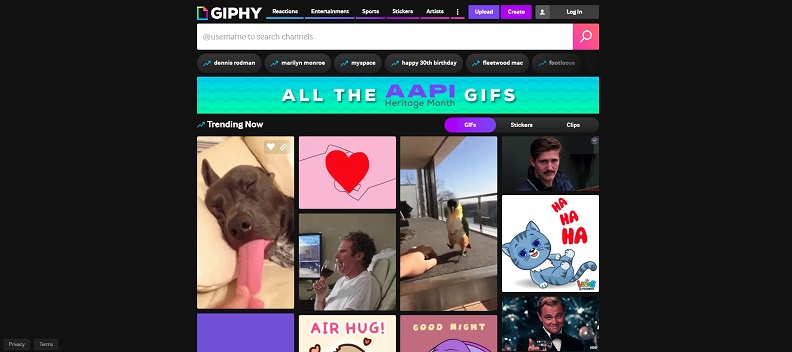
What makes GIPHY especially useful for Instagram is its built-in tool that converts GIFs into MP4 Instagram video files. Once you find or upload a GIF, GIPHY allows you to download it as a video with just a few clicks. And here is how you do it:
On Webpage
- Go to GIPHY.com on your desktop or mobile browser.
- Search for the GIF you want to post, or click "Upload"to add your own.
- Open Instagram and paste to share.
On Mobile App
- In the GIPHY mobile app, tap on the
 located under any GIF.
 - Once you tap the button, it will open a selection of social sharing buttons — tap on the Instagram button.
- Tap on the Instagram button, it will automatically open Instagram.
- You will be provided with two options: Add the GIF as a post to your Feed / Add the GIF to your Instagram Story.
- Select Feed, an .mp4 (15 second looped GIF) will be pushed into a post.
Tip: Keep your GIF under 15 seconds to make sure it uploads smoothly to your Feed!
2. Convert Local GIFs Using AVCLabs Video Enhancer AI
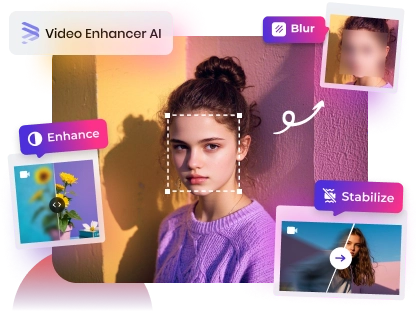
If your local GIF is blurry, low-res, or longer than 15 seconds, AVCLabs Video Enhancer AI is the perfect upgrade. It not only converts GIFs to Instagram-friendly MP4s but also upscales resolution (480p→1080p/4K), reduces blur, and trims clips to fit the 15-second limit—ideal for making your Feed posts stand out.
Key Features of AVCLabs Video Enhancer AI
- Convert GIF to HD MP4 (auto-looped, 15-second max for Feed).
- Remove moving grain and artifacts for crystal-clear visuals.
- Wake up every shining details in different videos.
- Enhance colors and adjust lighting in seconds.
- Blur face and license plate with AI technology.

How to Enhance your GIFs before posting to Instagram
Step 1 Download and install AVCLabs Video Enhancer AI
Download and install AVCLabs Video Enhancer AI, then launch it. Select Video Enhancer AI in the left menu.
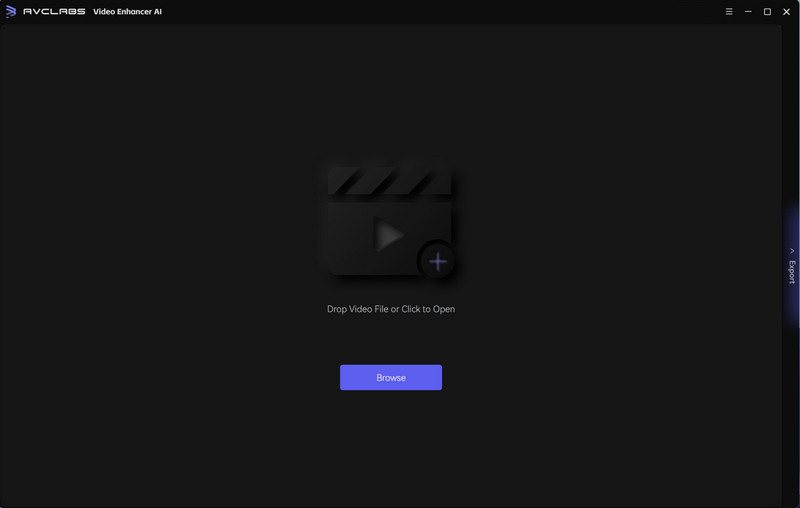
Step 2 Upload your GIF or video clip
Open the software and drag your local GIF file into the workspace. If you're starting with a video, that works too!
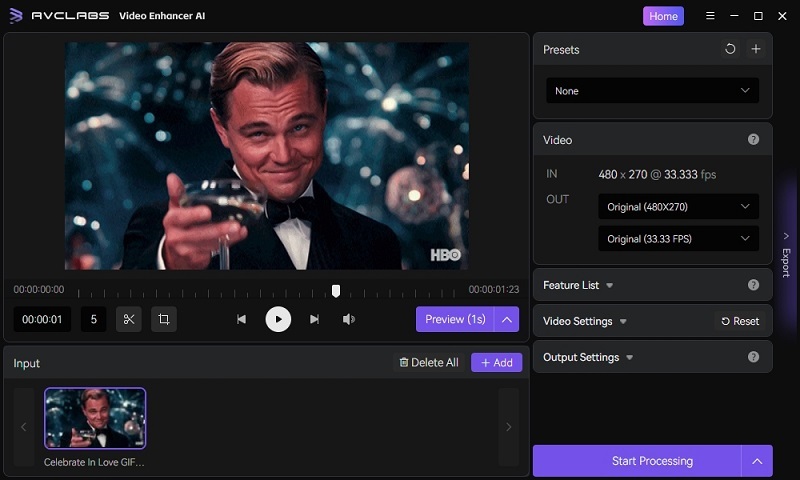
Step 3 Choose the output settings
Set the output format to .mp4 and trim the duration to 15 seconds or less—perfect for Instagram posts. And don't forget to check out the output path.
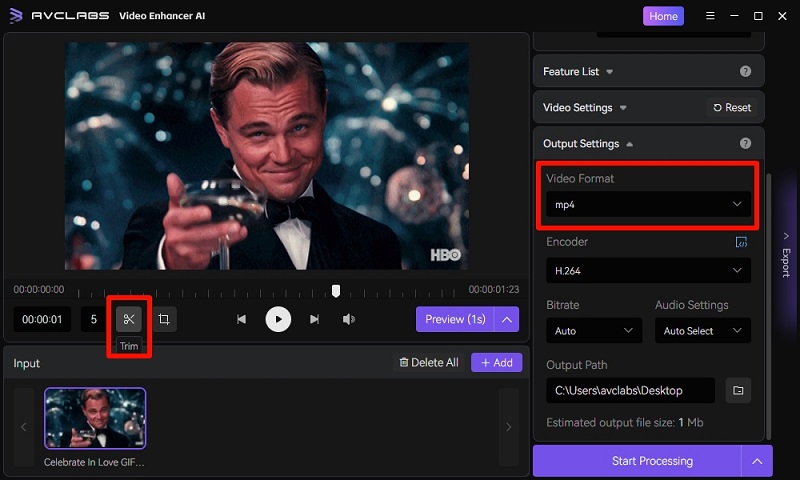
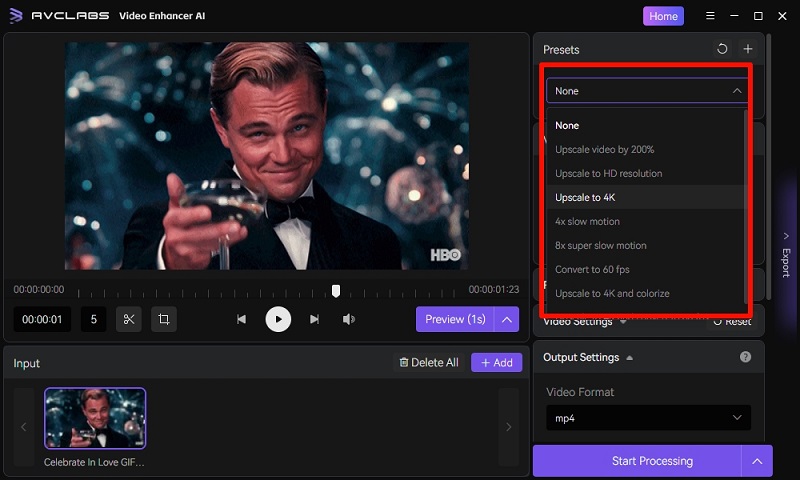
Step 4 Select enhancement options
This is where the AI magic happens. You can choose to enhance clarity, upscale resolution (e.g., from 480p to 1080p), and even fix motion blur or frame glitches.
Step 5 Preview
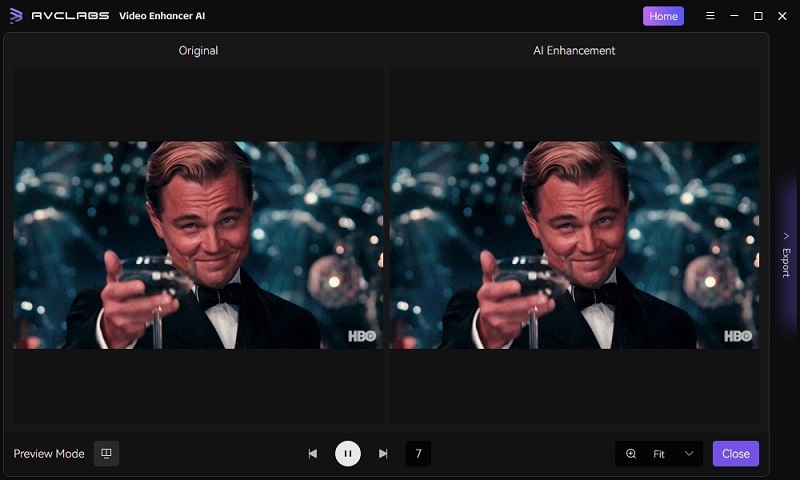
Click the "Preview" button to check out the result.
Step 6 Start enhancing
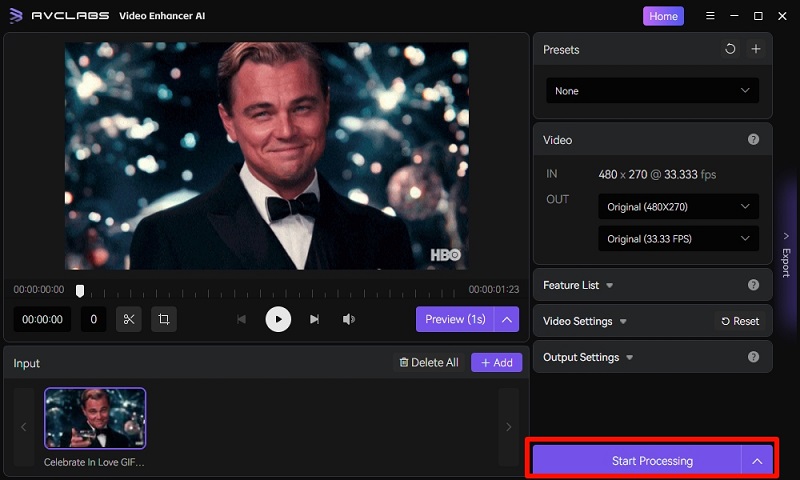
If everything looks good, click "Export" button and let the software work. It may take a few minutes depending on your settings and file size.
Step 7 Upload to Instagram
Open Instagram, select the video like you would any other post, and share it with your followers!
That's it—you've just turned a low-res GIF into a short video, ready to stop the scroll on Instagram.
💡 Pro Tip: If your GIF has a watermark, use the “Crop” tool to remove it before processing—no extra software needed!
⚠️ Feed Post Tips for 2026:
- Aspect Ratio: Stick to 1:1 (square) or 4:5 (portrait) → 9:16 (vertical) will be cropped.
- File Size: Keep MP4 under 50MB (Instagram’s limit for Feed posts).
- Duration: Max 15 seconds (longer GIFs need trimming—use GIPHY or AVCLabs).
- Sound: GIFs are silent by default, but you can add a short audio clip in Instagram’s edit mode if needed.
Part 2: How to Post GIFs on Instagram Stories?
Posting a GIF in your Instagram Feed is not the only option for adding a bit of fun to the content. There are times when you simply need to squeeze in brief animation into a Story instead. So, how to post GIFs on Instagram Stories? And the good thing is: there are a couple of simple methods in doing so.
We'll guide you through three easy ways to include GIFs in Stories in this section: adding a converted video version of a GIF, using Instagram's built-in GIF sticker search, and sharing directly from the GIPHY app.
1. Upload a Converted GIF Video
Just like with Feed posts, you can convert your GIF to a short video using a tool like AVCLabs Video Enhancer AI and upload it to Stories. If you’re not sure how to do that, check out the guide in the previous section: How to Enhance your GIFs before posting to Instagram.
2. Share Directly from the GIPHY App
GIPHY’s mobile app allows you to search for a GIF and share it directly to Instagram Stories with one tap, making it a fast and intuitive option. And you can simply check out the guide Use GIPHY to Convert and Share GIFs , and in step 5 of the “On Mobile App” section, choose Add the GIF to your Instagram Story to do it.
3. Use Instagram's Built-in GIF Sticker Search
While Instagram doesn't support posting .gif files directly, it does offer a built-in GIF
search that lets you add animated stickers to your Stories. While editing your Story, tap
the Sticker icon and select GIF. This opens a searchable library (powered by GIPHY) where
you can insert animated stickers directly onto your story. Here is how you do it:
- Open Instagram and start creating a Story.
- Tap the sticker icon at the top of the screen.
- Use keywords to find a GIF that fits your Story.
- Tap on the GIF to insert it. You can resize or move it as needed, then post your Story as usual.
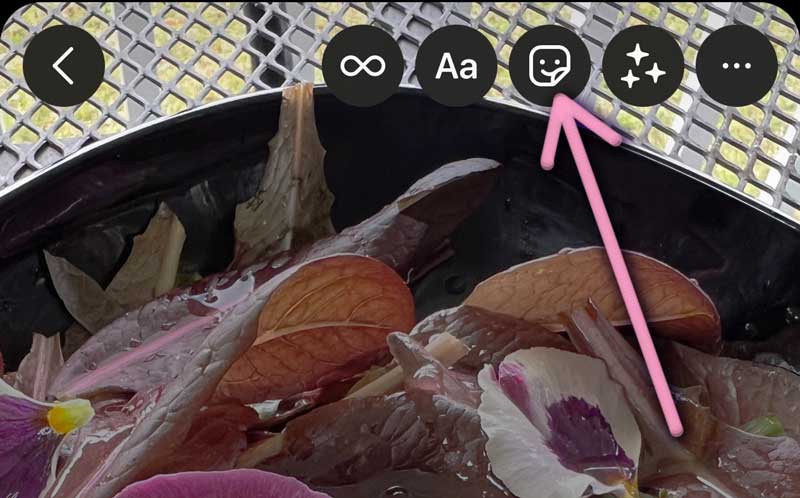
💡 2026 Update: Instagram’s built-in GIF library now supports “Recent Searches” and “Trending” tabs—faster to find your go-to GIFs!
Part 3: How to Send GIFs via Instagram Direct Messages?
Sometimes, you don't need to post a GIF publicly, you just want to send a funny or expressive reaction to a friend. Fortunately, Instagram didn't make it hard to share GIFs via Direct Messages. You don't need to convert any files or use third-party tools. Here's how you can do it:
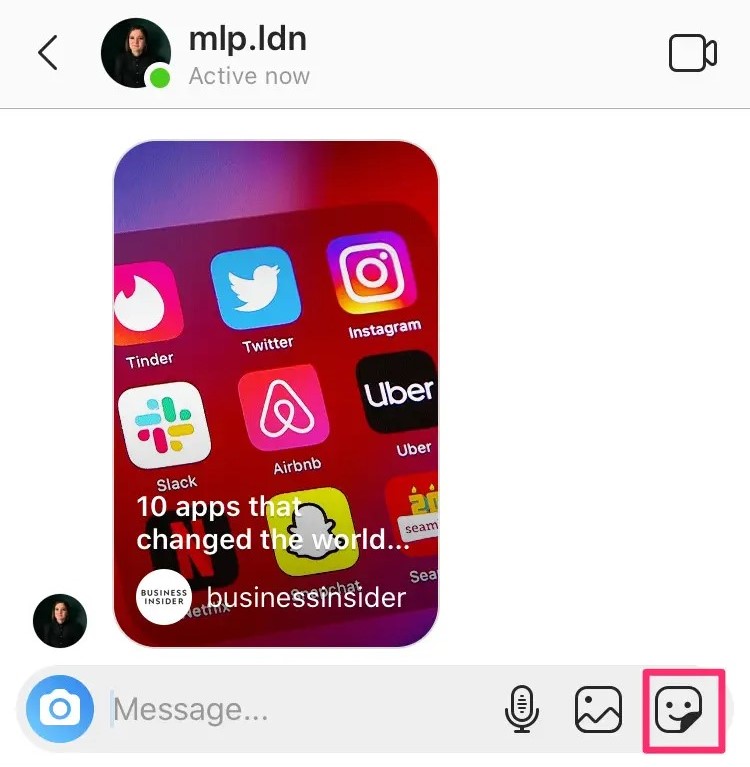
- Open the Instagram app and navigate to your Direct Messages, select a conversation or start a new one with a friend..
- Tap the Sticker icon located at the bottom of the message input bar.
- Use the search bar to type in a reaction or keyword (like "happy", "lol", or "coffee").
- Scroll through the animated options powered by GIPHY (yes, GIPHY again!) and tap on the one you want to send—it will be sent instantly.
💡 Pro Tips:
- Use short keywords (e.g., “sad” instead of “I’m sad”) for more accurate results.
- Tap the “Trending” tab to find popular GIFs of the moment.
- To save a GIF for later: Press and hold the GIF → Tap “Save” (it will be stored in your “Saved” folder).
Want your Instagram Stories to last longer and perform better? This article explains Story duration and shares AI-driven tips to create eye-catching, high-quality content. Learn more>>
FAQ About How to Post GIF on Instagram
Why can't I post GIFs in Instagram comments?
Instagram currently doesn't support GIFs in comments. You can only use text, emojis, or stickers (in Stories and DMs). If you want to react with a GIF, consider sending it via Direct Message instead.
Is the GIPHY app free?
Yes, GIPHY is completely free to use. You can search, download, and even create your own GIFs without any cost. It's available on multiple platforms.
How can I add my own stickers in Instagram Stories?
You can't upload custom stickers directly into Instagram, but you can follow the guide in this passage and turn your sticker or GIF into a short .mp4 video and add it to your Story. Alternatively, if you're a verified GIPHY artist, you can apply to have your stickers show up in Instagram's built-in GIF search.
Conclusion
If you've ever asked yourself how to post GIF to Instagram or how can I post GIFs on Instagram, we hope this guide has made the process much clearer. With just a few simple tools, you can turn your animations into polished, share-worthy content.
Ready to take your GIFs to the next level? Try AVCLabs Video Enhancer AI today to convert and enhance your GIFs with powerful AI features. Improve clarity, upscale resolution, and make every frame look professionally edited—so your posts stand out wherever you share them.