

AVCLabs Video Blur AI is a powerful AI-driven video anonymization tool that blurs faces, license plates, backgrounds, and removes objects. Fully automated with AI—no manual editing needed.
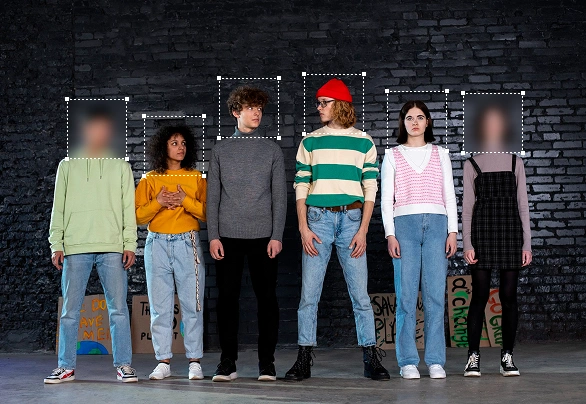
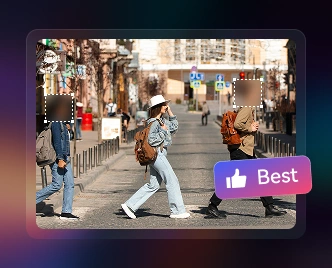
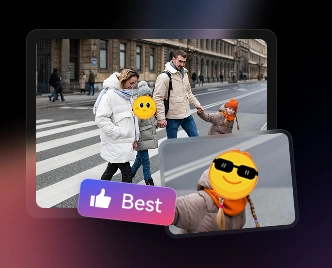
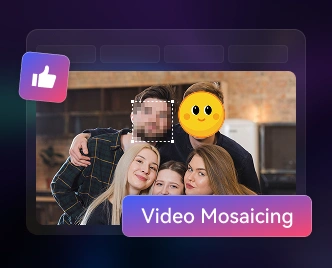
Powered by AI facial detection technology, AVCLabs Video Blur AI can automatically identify and blur all faces in video, even in complex scenes with poor lighting, crowded scenes, or fast-moving scenes. The Image Import Recognition function allows you to import specific facial photos and apply blur effects to selected faces.
This Face Blur feature can be widely used in news reporting and public security surveillance, providing an efficient and reliable solution for facial anonymization that meets the privacy protection requirements of various scenarios.
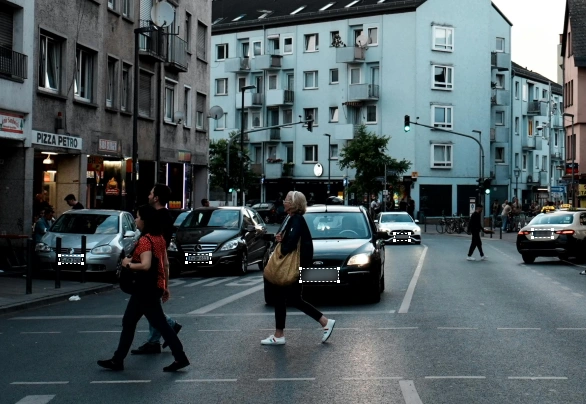
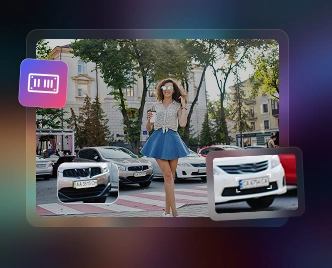
AVCLabs Video Blur AI features a specialized AI license plate recognition model, trained to accurately detect and track license plates across diverse scenarios. It automatically applies consistent blurring to license plates, ensuring vehicle privacy and compliance with data regulations.
Optimized for dynamic and complex scenes like dashcam and road surveillance footage, AVCLabs Video Blur AI can efficiently blur license plates in video, making it an essential privacy tool for creators and professionals.

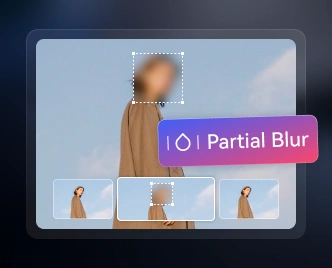
AVCLabs Video Blur AI leverages AI technology to intelligently separate different layers in a video, offering both Background Blur and Foreground Blur options. This gives you flexible control over the focus of your footage, whether to highlight key content or safeguard privacy.
Background Blur helps reduce environmental distractions, making presenters or demonstration subjects in video stand out. Foreground Blur, on the other hand, can blur identity, documents, cars, or other sensitive elements - ideal for privacy protection or hiding unnecessary details.

AVCLabs Video Blur AI's object tracking blur feature is designed for efficient and precise processing of moving objects in videos. It automatically identifies and locks onto targets - be it a fast-moving vehicle or an individual in a crowd - and maintains a consistent, accurate blur across frames with stable tracking.
Even with multiple subjects, rapid motion, or occlusions, the AI ensures a smooth and natural-looking result, guaranteeing a professional finish for your video.
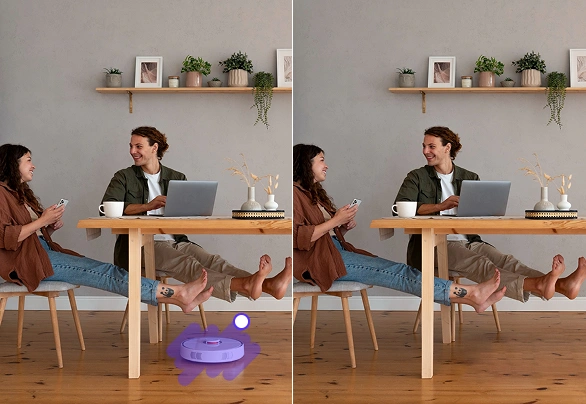
AVCLabs Video Blur AI provides two flexible object removal methods to help you easily remove various distractions from your videos. With the Fixed Area Removal feature, you can effortlessly erase unwanted static objects like watermarks and logos from your video. The Smart Object Recognition Removal function automatically removes pedestrians, vehicles, or other moving distractions.
This is particularly useful in vlogs, educational training videos, product demonstrations, or event recordings, as it removes distracting objects from video while highlighting the main subject, ensuring video integrity and viewing quality.
More than just a blurring tool, AVCLabs Video Blur AI is a complete AI-powered privacy and video editing solution—built to replace slow manual masking and scattered single-feature apps with one automated workflow on Windows and Mac.
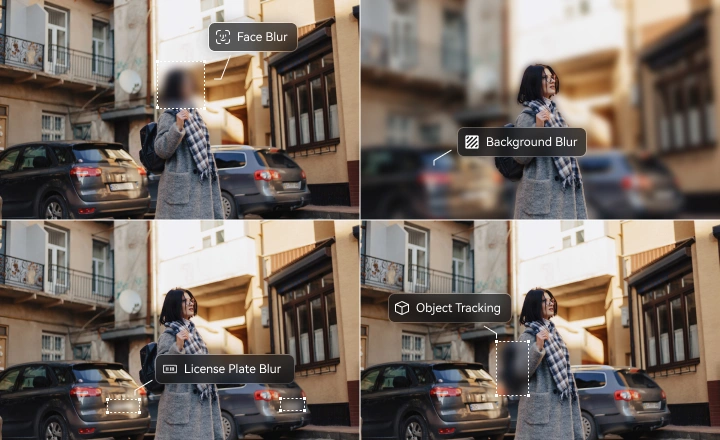
AVCLabs Video Blur AI stands out with diverse blurring modes designed to meet privacy and compliance requirements across various scenarios. It integrates 5 professional privacy-focused blur features: face anonymization, license plate masking, background blur, custom object masking, and fixed-area blur—no need to switch tools for different tasks.
Unlike tools confined to processing a single privacy element, AVCLabs Video Blur AI simultaneously handles multiple types of sensitive information within the same video, delivering a comprehensive, one-stop privacy solution for creators, security teams, and compliance workflows.
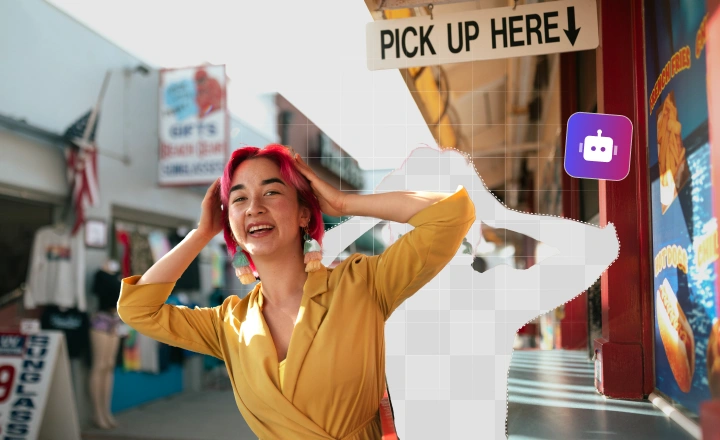
Many workflows blur faces or license plates in one tool and remove objects from video in another. AVCLabs Video Blur AI combines advanced AI face blur, license plate masking, and AI Object Remover in a single desktop app—so privacy redaction and distraction cleanup share one timeline and one export.
With seamless AI restoration technology, the object remover fills removed areas naturally while blur tasks stay consistent across the clip, delivering clean and professional-quality videos without juggling multiple subscriptions or plugins.
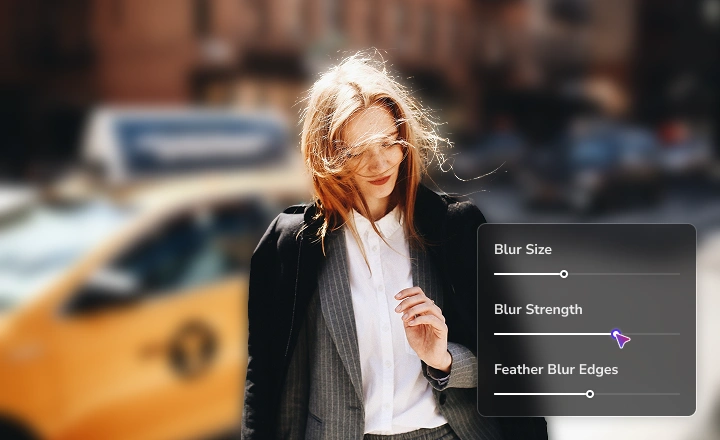
Manual frame-by-frame masking in traditional NLEs can take hours per clip. AVCLabs Video Blur AI offers flexible, user-centric blur settings with intuitive sliders for blur intensity, size, and feathering—plus real-time previews—so anyone can balance privacy and visual quality without professional editing experience.
For privacy-sensitive scenarios, such as hiding an individual's identity in a public event video, you can increase the blur intensity for complete anonymity. In creative applications, such as emphasizing a product, a soft background blur establishes a professional focal point—all within AVCLabs Video Blur AI.
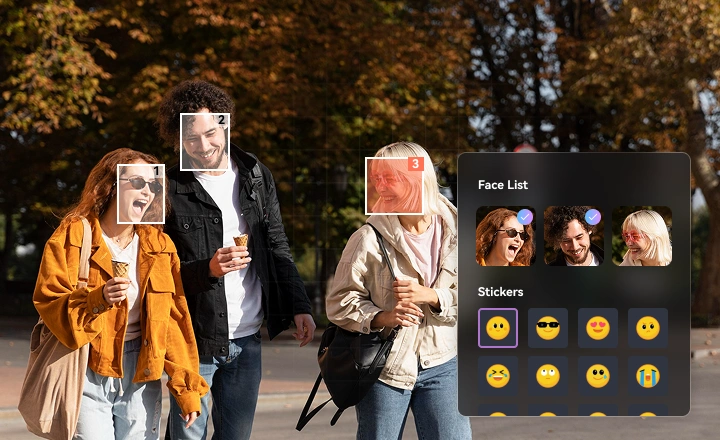
AVCLabs Video Blur AI replaces tedious manual work with an automated approach that saves time on real projects. It automatically scans and identifies faces, allowing you to blur one or multiple faces with just a few clicks, while license plates, backgrounds, and other sensitive elements can be anonymized in one step.
Even with hour-long surveillance footage or multi-scene vlogs, AVCLabs Video Blur AI processes efficiently—making it a smarter choice over manual blur tools and enabling anyone to achieve professional-grade video blurring with ease.

Supports MP4, AVI, MOV, MKV, WMV, WEBM, and 20+ formats—no pre-conversion needed before editing.

Export to MP4, MKV, MOV, AVI, WEBM, or MXF for delivery, archive, or further editing.

Exports at high quality with minimal compression loss in unedited areas, keeping your video crisp and clean.

Tune face and license plate detection precision in Model Settings for accurate, targeted adjustments.

Set start and end frames per blur task, ensuring effects apply exactly where you need them.

GPU-accelerated processing with optional NVIDIA TensorRT for faster blur and removal exports.

16 GB+ RAM recommended with virtual memory enabled for stable long-form video processing.

All video data remains on your device, ensuring full privacy and control throughout editing.
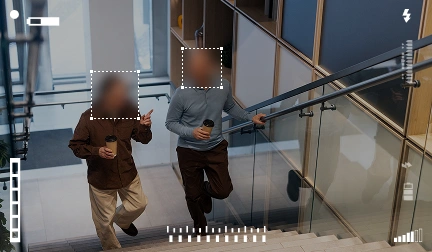
AVCLabs Video Blur AI offers an advanced solution to anonymize faces in public surveillance footage. With AI-powered facial recognition, it can automatically detect and blur all faces or selected individuals.

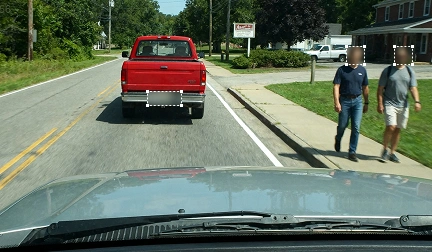
AVCLabs Video Blur AI makes it easy to anonymize dashcam footage by automatically detecting and blurring faces and license plates within minutes. This AI-powered tool ensures precise results, protects privacy, prevents license plate forgery.
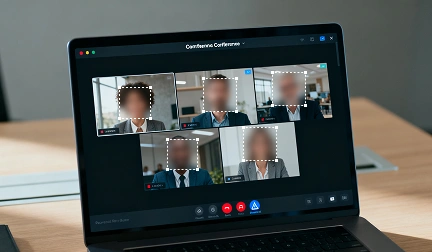
Protect privacy in your conference recordings with AVCLabs Video Blur AI. This AI-powered tool automatically detects and anonymizes faces, objects, and other sensitive information.
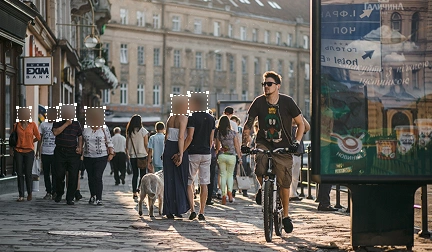
This article offers a comprehensive guide on how to blur faces in videos using various methods and tools across different platforms, including Windows, macOS and online video editing tools.
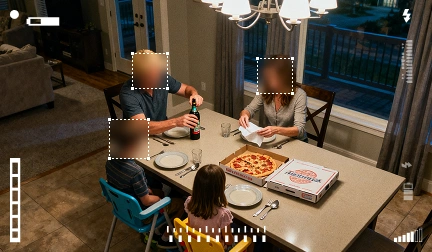
AVCLabs Video Blur AI is a powerful tool for protecting privacy in home surveillance footage. With advanced AI algorithms, it can automatically detect and blur all faces—or specific individuals—with just one click.
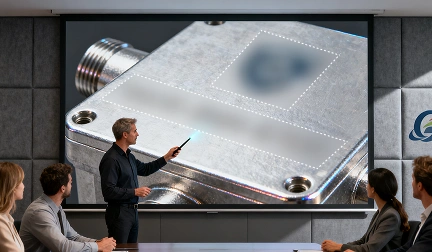
AVCLabs Video Blur AI automatically detects and blurs sensitive elements like serial numbers and logos in every frame—even during brief appearances.
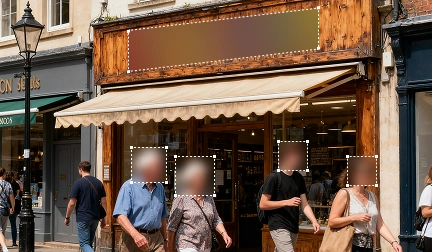
Protect privacy quickly and efficiently with AVCLabs Video Blur AI when sharing videos online. It can automatically blur all sensitive information—even in fast-moving or crowded scenes.
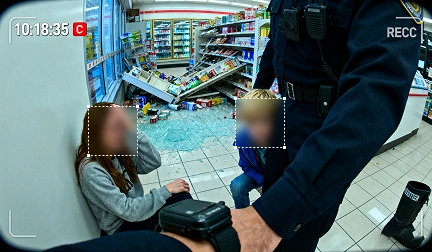
Protect privacy in law enforcement videos with AVCLabs Video Blur AI and automatically blur faces of victims & minors. Ensure safety and compliance in minutes.
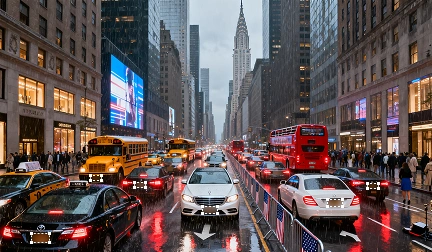
AVCLabs Video Blur AI is a software that uses artificial intelligence to automatically identify and track license plates in videos and apply blur effects with high accuracy and consistency.
Whether you're an iOS or Android user, a desktop enthusiast, or someone who prefers online solutions, this article will guide you through the best apps and software for blurring video backgrounds.
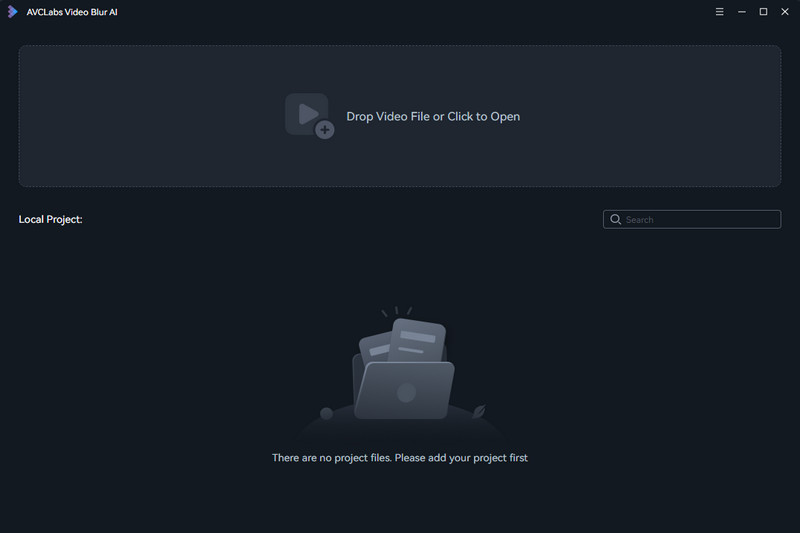
Learn more about the system and hardware requirements for AVCLabs Video Blur AI.

If you have any other questions about AVCLabs Video Blur AI, you can easily reach out to us here.

Click the Key icon or the Menu icon (on the upper right) > Register. There will be a registration popup dialog, where you can copy and paste the registration email and license code.
Both Assign Faces and Free-form Selection aim at blurring a specified face out of multiple faces. The difference lies in the way they interact: Assign Faces first waits for the entire video to be scanned and then selects the face to be blurred among all the scanned faces, while Free-form Selection is faster and more intuitive, allowing users to select faces by clicking selection boxes on the homepage.
Click the Menu button (on the upper right) > Settings, switch to Model Settings, and increase the value of the Detection Precision under Face Settings. The higher the value, the more accurate the face scan will be.
Method 1: Click the Menu button (on the upper right) > Settings, and switch to Model Settings. Scroll down to the License Plate Settings and reduce the Detection Accuracy to detect more license plates.
Note: Increasing the value Detection Accuracy enhances the precision of license plate recognition. However, setting it too high might overlook some license plates with less distinctive features. Conversely, reducing the value can detect more license plates, but setting it too low might misidentify non-license plate objects as plates.
Method 2: Use the Fixed Blur function to blur missing license plates.
AVCLabs Video Blur AI does not support outputting 360-degree video currently. Support for this feature will be available in a future update!
In the trial version, you can blur 3 video files for free with a watermark. And you can purchase the full version to unlock this limitation.
Method 1: Click the Menu button (on the upper right) > Settings, switch to Model Settings, and reduce the value of Detection Precision under Face Settings. The lower the value, the more faces can be recognized.
Method 2: Use the Fixed Blur feature to blur missing faces or parts.
To resolve this problem, adjust the Detection Accuracy setting for license plates. Go to the Menu button (in the upper right corner) > Settings > Model Settings. Scroll down to License Plate Settings and increase the Detection Accuracy value accordingly.
Note: Increasing the value Detection Accuracy enhances the precision of license plate recognition. However, setting it too high might overlook some license plates with less distinctive features. Conversely, reducing the value can detect more license plates, but setting it too low might misidentify non-license plate objects as plates.
Yes. With AVCLabs Video Blur AI, you can easily remove unwanted objects like passersby, logos, or date stamps. Powered by AI object removal and motion tracking, the tool analyzes each frame and fills in removed areas naturally, so your video stays smooth and professional. It also supports face blurring, license plate masking, and custom region removal, making it a versatile solution for both personal and professional video editing.
 AVCLabs Video Blur AI

Pioneering in AI, AVCLabs is committed to providing comprehensive tools for enhancing and restoring visual content across industries.


© 2026 AVCLabs Inc. All Rights Reserved





![[3 Ways] How to Blur A Screen Recording](/assets-new/img/features/video-blur-ai/how-to-blur-a-screen-recording.webp)
 Free Download