How to Blur Part of a Video on PC, Mobile, Online
 Posted By: Besty Smith
- Updated On: April 20, 2026
- Category: Blur Video Tips
Knowing how to blur part of a video is an essential skill for protecting privacy and creating professional-looking content. This comprehensive guide will walk you through the simplest ways to blur part of video, whether you're using a computer, a phone, or just a web browser. Find the solution that fits your needs and save you time and effort.
Further reading: How to Blur and Pixelate License Plate in Video? | How to Blur Videos in Premiere Pro
Comparison Table of Each Video Blurring Tool
| Method | Best For | Key Pros | Key Cons |
|---|---|---|---|
| Online Tools (BlurMe) | Quick edits, small videos, casual users | No software download, AI auto-blur, free trial | Limited file size, requires internet |
| Desktop Software (AVCLabs Video Blur AI) | Large/4K/8K videos, pro edits, batch processing | AI object tracking, 8K export, full customization | Requires installation, paid full version |
| Mobile App (CapCut) | Social media videos, on-the-go edits | Free, all-in-one editor, easy sharing | Manual keyframing for moving objects |
Part 1: How to Blur Part of a Video Online?
If you need to quickly blur a part of a video but don’t want to download bulky video editing software, online video blurring tools are your best bet. They’re perfect for editing short clips, hiding sensitive details, and sharing content fast.
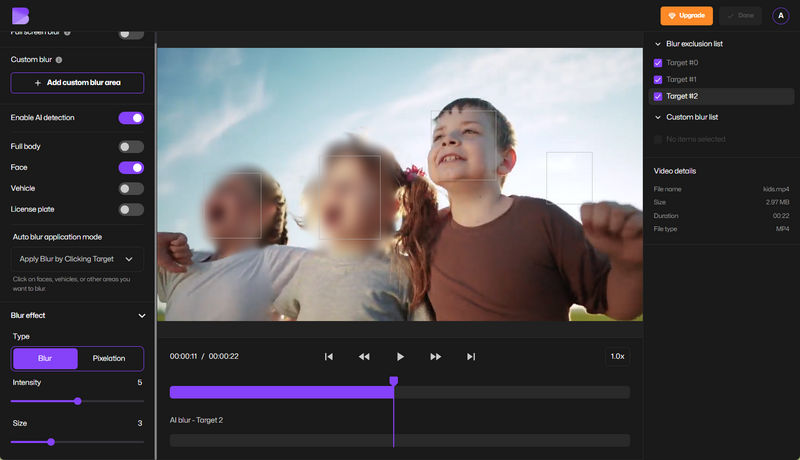
BlurMe, with its AI-powered automatic recognition and easy operation, has become the go-to tool for online video blurring. This privacy-focused, AI-driven online platform not only automatically identifies and blurs faces, full body, license plates, vehicles, and other sensitive areas in videos, but also allows users to manually add blur to part of video. It offers a variety of blur styles (such as blur and pixelation), and allows for flexible adjustment of intensity and size, providing exceptional flexibility.
Steps on How to Blur a Part of Video Online
Step 1 Open BlurMe and click the "Upload" button to upload the video you want to blur online (supports MP4, MOV formats).
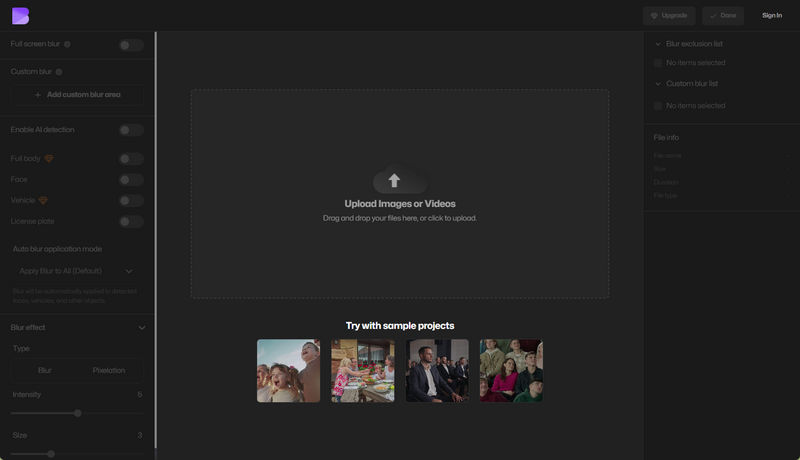
Step 2 You can use "Custom Blur" to pixelate sensitive parts of the video or enable "AI Detection" to automatically blur faces, license plates, and vehicles in your footage..
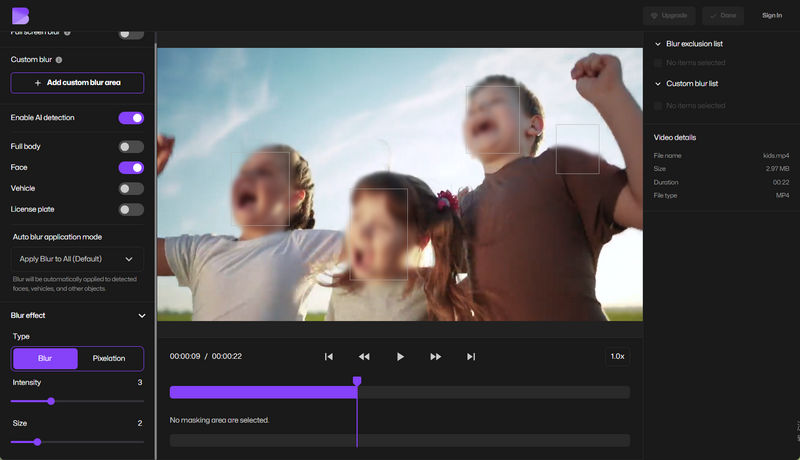
Step 3 Set the blur application mode to automatically blur all sensitive areas or manually click on the parts you want to blur. Adjust the blur intensity and size to your liking, then click Preview to check the result before exporting.
Part 2: How to Blur Part of a Video on Computer?
Compared to online tools, desktop video blurring software shines when processing large files, 4K/8K footage, or complex scenes that require precise tracking. Editing locally also ensures better privacy and security, with enhanced performance and a more stable processing experience.
AVCLabs Video Blur AI is an AI-based desktop application designed specifically for video privacy protection. It offers a wide range of features, including face blurring, license plate blurring, background blurring, fixed blurring, and object tracking.
Its core strength lies in its AI-driven automated processing and high customization capabilities. In particular, the face blur feature allows users to selectively blur specific people in a video, and even upload photos to precisely target the parts they want to blur. It also supports a wide range of customizable settings, enabling users to freely adjust blur color, style, size, and intensity to achieve refined visual effects. Furthermore, AVCLabs Video Blur AI supports processing and exporting high-definition videos up to 8K resolution, meeting the needs of high-quality video production.
Key Features of AVCLabs Video Blur AI
- Blurs certain parts of video, such as faces, license plates, backgrounds, or private information.
- Easy to blur out video with almost fully automatic AI blur capabilities.
- Includes various blur options and stickers, with the ability to upload custom blur effects.
- Supports MP4, MKV, AVI, MOV, WEBM, and MXF.

Steps on How to Blur Part of a Video on Windows or Mac
Step 1 Upload Video
Download and open AVCLabs Video Blur AI on your computer. Import the video where you want to blur part of a video.
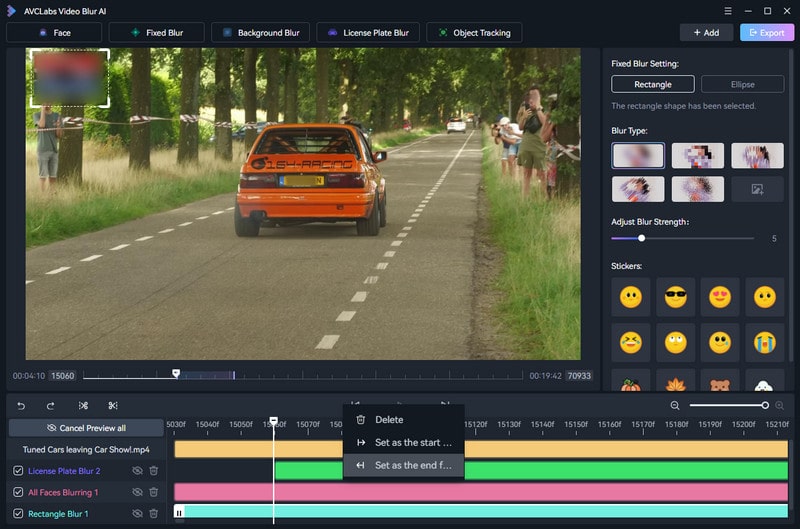
Step 2 Select Blur Mode
Choose the blur feature to precisely blur part of video according to your blur need. You can also drag the timeline to flexibly determine which clips are blurred. Additionally, it supports adding multiple blur effects simultaneously, making your editing more flexible and diverse.
Step 3 Customize the Blur Effect
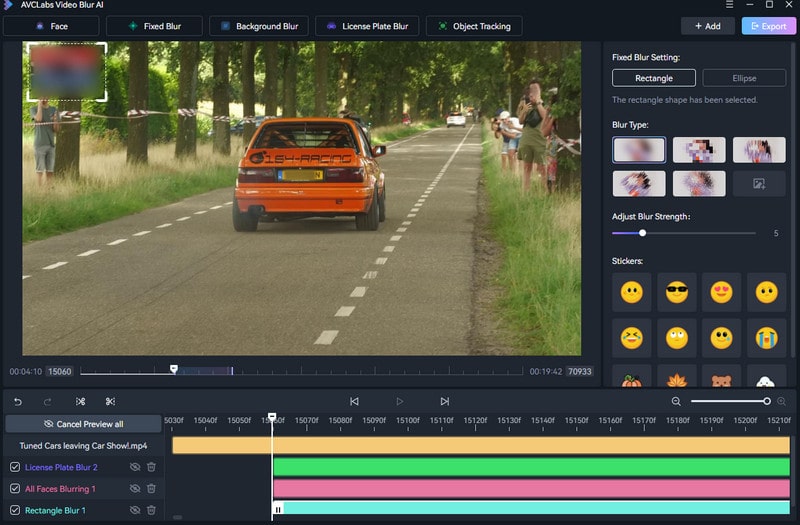
Adjust the blur style, size, intensity, and color in the right panel.
Step 4 Blur Part of a Video
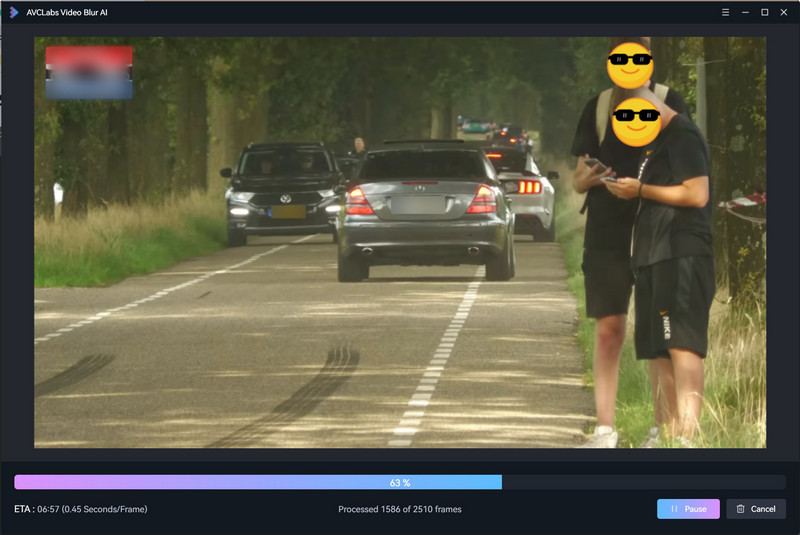
Click the "Export Video" button and AVCLabs Video Blur AI will automatically blur your video.
Part 3: How to Blur Part of a Video on iPhone and Android?
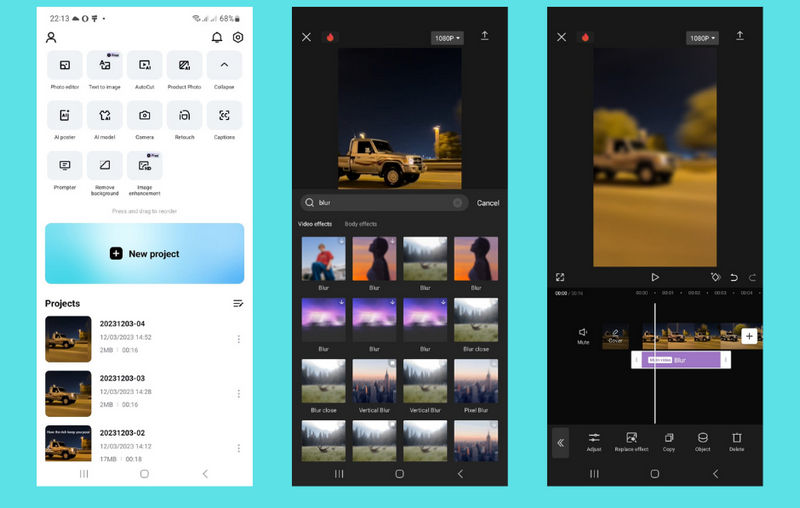
If you want to quickly blur a part of a video on iPhone or Android, CapCut is an excellent choice for both. It is a powerful all-in-one video editor that not only meets your daily video editing needs but also comes with a variety of blur effects, allowing you to easily add blur to part of video.
Step 1 Open CapCut, click New Project, and import the video you want to blur.
Step 2 Select Effects > Video effects in the toolbar, and find the Blur effect. After adding the Blur effect to the timeline, adjust the blur range and duration.
Step 3 To blur part of the video (such as a face or license plate), click the blur effect layer and select Mask. If the blurred area is moving, you can use keyframes to achieve motion tracking.
Step 4 Click the "Export" button in the top-right corner, select the resolution and frame rate, then save to your phone or directly share to TikTok, YouTube.
FAQ About Blur Part of Video
How do I blur specific, moving parts of a video?
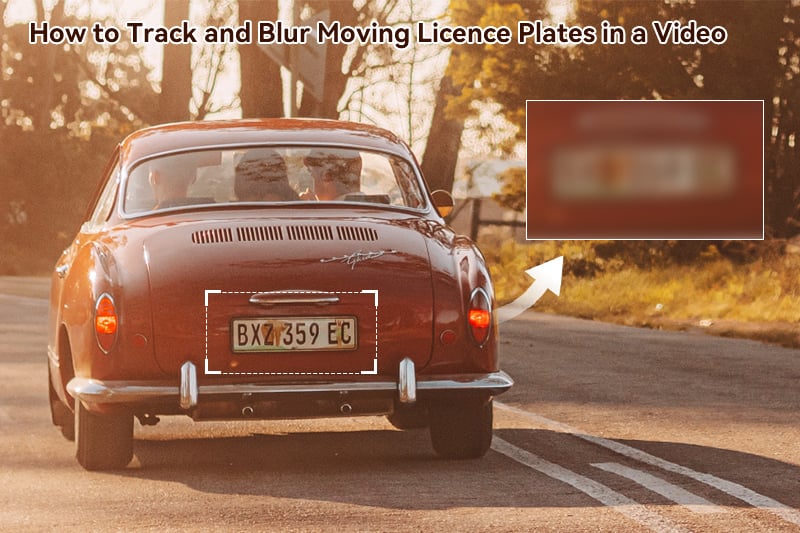
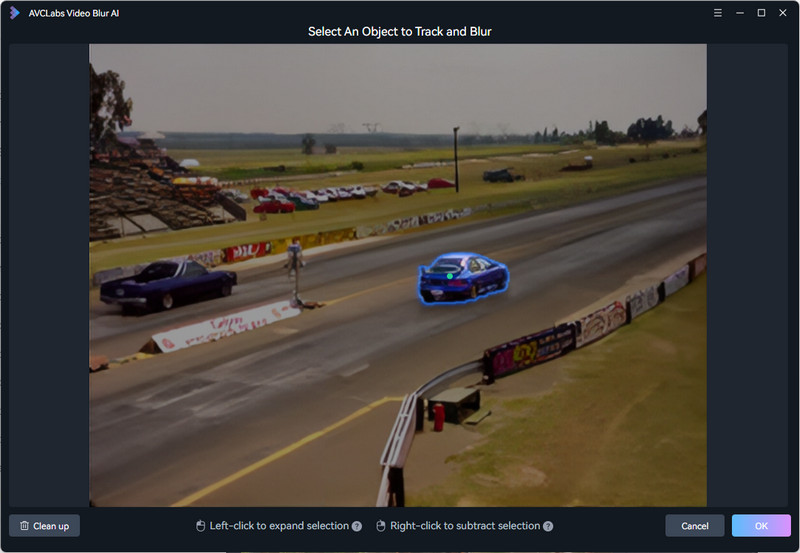
To blur moving objects in a video, it is recommended using an AI-powered video blur tool that supports object tracking, such as AVCLabs Video Blur AI. These tools can automatically identify and track specific subjects in a video (such as faces, cars, or license plates) and continuously add blur to part of video, saving a lot of time from manual operations.
How to blur faces in a video for free?
If you want to free blur faces in your video, you can use tools like DaVinci Resolve or CapCut. These free video blur tools can help you manually or semi-automatically blur faces, but for dynamically moving faces, you may need to adjust each frame, which is less efficient and time-consuming.
👉️ You might want to try AVCLabs Video Blur AI, which offers a free trial that allows you to automatically blur faces or objects in up to 3 video files.
Conclusion:
Whether you choose a professional desktop editor like AVCLabs Video Blur AI, an online tool like BlurMe, or a mobile app like CapCut, there's a solution to your needs when it comes to how to blur part of a video. With the right tool, you can quickly blur faces, objects, or any moving parts while keeping the rest of the video sharp and engaging. For a more efficient and precise experience, we highly recommend trying AVCLabs Video Blur AI.